If you're looking for the quickest solution, click the button right here below to log in to your Web Dashboard:
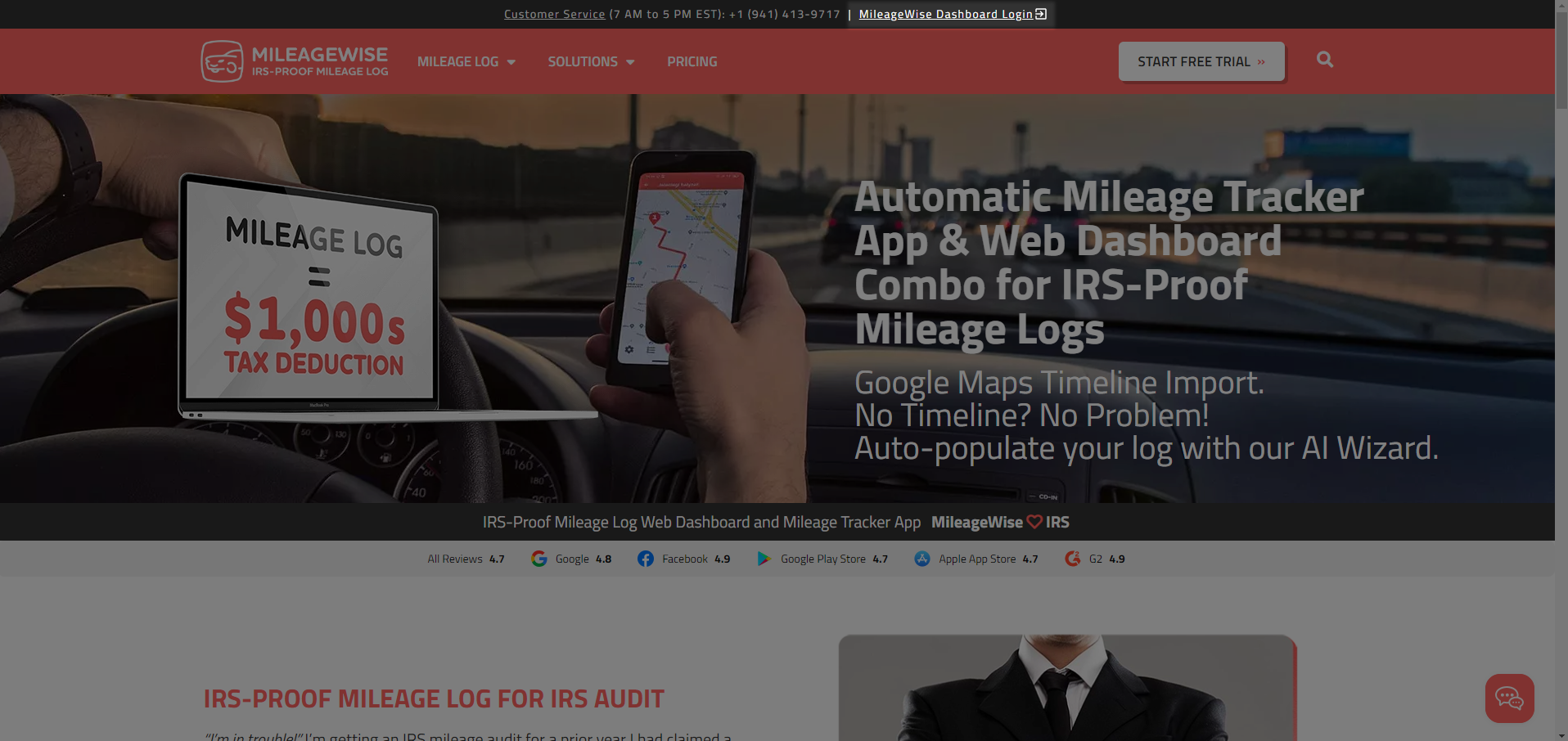
Generally, you can find the MileageWise Dashboard Login button at the top of every single webpage on MileageWise:
If you have already created your User Account, enter your login information (email address and password). Then click the "Log in" button.
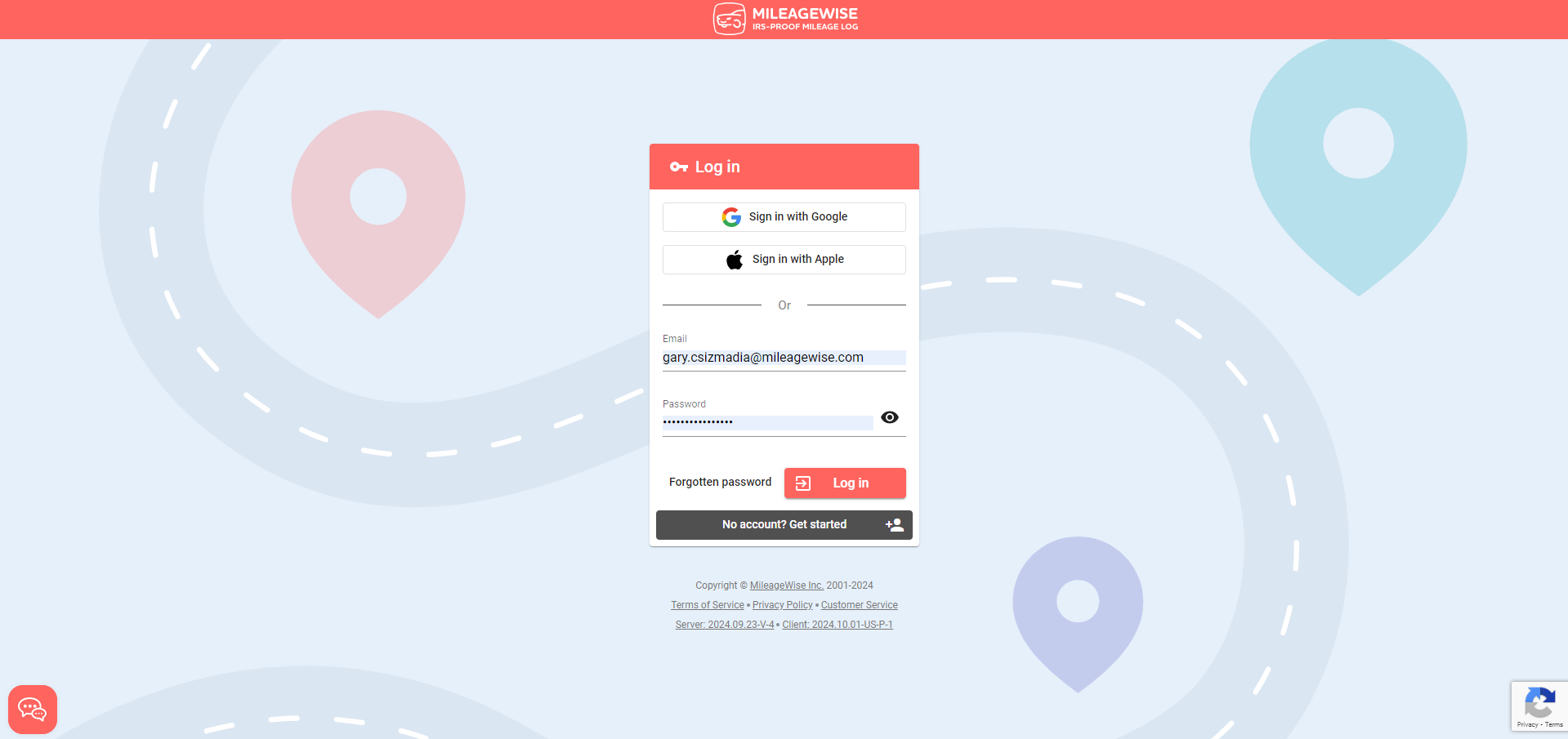
Since this is an online system, you will always be able to log in using your email and password from virtually anywhere in the world and still have access to the same data.
"Can I use the same login data for both the mobile app & web dashboard?"
Absolutely. Whether you provide your login data on mobile or desktop, you'll be able to use that password on the other platform too, due to its cross-device nature.
"Why do I have to fill the reCAPTCHA after logging in?"
reCAPTCHA protects your website from spam and abuse. We understand that reCAPTCHA popping up might be frustrating sometimes, but the service is owned by Google and unfortunately, we must follow Google's guidelines to ensure privacy and safety for everyone.
MileageWise Login for Teams
You can assign multiple users to an account and assign roles to the users with specific user permissions. Read more about this feature in this article.
